
- Cosmic Spins App for UK Players
- Choose Between the Android App and Mobile Browser
- How to Download the Cosmic Spins Android App
- If Google Play Does Not Offer Installation
- Cosmic Spins APK Downloads
- Using Cosmic Spins on iPhone and iPad
- Read the Full Page Before Confirming an Action
- Compatibility, Updates and App Permissions
- Registration and Login on Mobile
- Creating an Account
- Password Recovery and Identity Verification
- Mobile Games, Payments and Promotions
- Depositing and Requesting a Withdrawal
- Promotions Accessed Through the App
- Troubleshooting Cosmic Spins Mobile Access
- Account Security and Mobile Support
Cosmic Spins App for UK Players
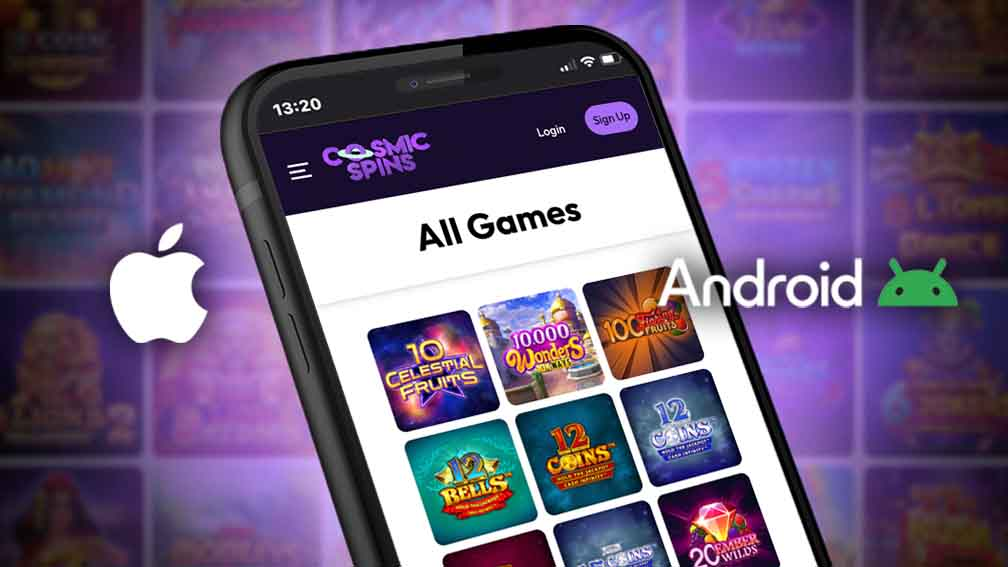
The Cosmic Spins app has an Android listing on Google Play, published by Mediacle under the package name com.cosmicspins. Android users can open that listing to check whether installation is available for their device. For iPhone and iPad users, the practical access route is the Cosmic Spins casino website through a mobile browser.
Downloading software and opening a casino account are separate steps. Installing an app does not complete registration, verify your identity or qualify you for a promotion. Cosmic Spins is a real-money gambling service for adults aged 18 and over.
Choose Between the Android App and Mobile Browser
The main difference between an app and browser access is how you open the service. An Android app installs on your device; the browser route opens the casino website without a separate casino installation.
A home-screen shortcut is another option where your browser supports it. The icon opens a saved website address, so its appearance alone does not mean you have installed a native app.
| Access option | How it works | Practical consideration |
|---|---|---|
| Cosmic Spins Android app | Installed through the Cosmic Spins Google Play listing | Google Play determines whether installation is available for your device and account |
| Android browser | Opens the casino website in your browser | Useful if you prefer access without installing a casino app |
| iPhone or iPad browser | Opens the casino website through a mobile browser | Use the website route rather than an Android download |
| Website shortcut | Saves an icon pointing to a website | A shortcut does not establish native app functionality |
| APK downloaded outside Google Play | Installs an Android application file directly | Avoid files from download directories, advertisements or unsolicited messages |
Choose the route that works on your device without bypassing installation restrictions. Changing access methods does not remove account restrictions, verification requirements or promotion conditions.
How to Download the Cosmic Spins Android App
Use the Google Play listing to inspect the application before installing it. The listing identifies the publisher as Mediacle and links to cosmicspins.com as the app’s website.
Follow these steps:
- Open the Google Play listing on the Android phone or tablet you intend to use.
- Confirm that the application is named Cosmic Spins and the publisher is Mediacle.
- Read the compatibility information and any availability message displayed for your device.
- Review the app information, privacy policy and any permissions presented during installation.
- If Google Play offers installation, complete it through the store.
- Open the installed application and inspect the account access page before entering your details.
If Google Play Does Not Offer Installation
An app listing being visible on the web does not guarantee that every visitor can install it. Availability can depend on the device, software and Google Play account region.
Use browser access if installation is unavailable. Do not change your account region, disable device protection or install an alternative file simply to get around an availability message.
Cosmic Spins APK Downloads
APK is the file format used to distribute Android applications. A file carrying the Cosmic Spins name or logo does not, by itself, establish who produced it or whether it has been altered.
For the Android download route described here, stay with Google Play. An iPhone cannot use an Android APK, and downloading one will not provide iOS access.
Using Cosmic Spins on iPhone and iPad
For Cosmic Spins mobile access on an Apple device, open cosmicspins.com in your browser. This route does not require an Android application or a separate installation file.
Check the website address before signing in. A page containing a brand review, bonus comparison or download article is different from the casino account portal. Enter account credentials only on the casino’s account access page.
If your browser offers a home-screen shortcut, save it after confirming the destination. This can make repeat access more convenient, but it remains a link to the website.
Read the Full Page Before Confirming an Action
On a smaller screen, important information may appear below the visible area. Scroll through registration declarations, payment details and promotion conditions before proceeding.
If a keyboard covers a field or confirmation control, dismiss it and review the page. Enlarging text can help with reading, although it may also change how a form fits on screen.
Compatibility, Updates and App Permissions
Use the device-specific information shown by Google Play when assessing the Cosmic Spins Android app. A general statement about Android support should not replace the store’s compatibility result for your particular phone or tablet.
Keep your operating system and browser updated through their normal update routes. For an installed app, obtain updates through the store used for installation. Avoid update prompts that send you to an unrelated download website.
Before installation or an update, review:
- Whether the application is available for your device.
- Any storage requirement shown by the store.
- The permissions requested and their stated purpose.
- The linked privacy policy.
- Whether the publisher and website details match the application you intended to install.
A permission request should make sense for the task being performed. For example, selecting an identity document from your phone is different from granting broad, ongoing access to unrelated device content. If a request is unclear, seek an explanation before allowing it.
Registration and Login on Mobile
Cosmic Spins’ website login form uses an email address and password and provides a password recovery option. Existing players should use their established account details rather than create another account because they have changed phones or access methods.
You can reach the verified Cosmic Spins login page directly. Check the address before entering your password, particularly after following a search result or advertisement.
Creating an Account
If you are registering for the first time, complete the details requested by the casino’s registration form accurately. Use an email account you control and enter personal information consistently with the documents you may later need to provide.
Installing the Cosmic Spins app does not establish eligibility to gamble. Read the registration conditions that apply to your circumstances before opening an account.
Password Recovery and Identity Verification
Password recovery restores access to an existing account. Identity verification establishes who owns the account. Completing one does not necessarily complete the other.
If you forget your password, use the recovery option on the casino login page. If documents are requested, follow the instructions within the account or verified support guidance. Do not send identity documents to an app download directory or someone claiming to help through an unsolicited message.
Mobile Games, Payments and Promotions
The Google Play description presents the Cosmic Spins Android app as providing casino games, registration, promotions, deposits and withdrawals. The options displayed inside your account should guide the next action you take.
For games, read the rules and confirm the selected stake before placing a wager. Small-screen controls can sit close together, so inspect the amount rather than relying on the position of a button.
Depositing and Requesting a Withdrawal
Before confirming a mobile deposit, review the payment method, amount and any promotion selection attached to the transaction. If a payment appears to stall, check its status before trying again.
For a withdrawal, distinguish submitting the request from receiving the money. A confirmation that the request has been received does not establish that account checks are complete or that funds have reached your payment provider.
Use the methods and limits displayed for your account. Do not assume that a method available for deposits also supports withdrawals.
Promotions Accessed Through the App
Installing an app does not automatically activate an offer. Before accepting a promotion, establish what action qualifies, which games count and what restrictions affect any resulting winnings.
Pay particular attention to whether the offer requires a deposit, cash wagering or a specific selection during payment. Also review expiry, maximum stakes and withdrawal conditions where they apply. A promotion shown on a general page should not be treated as an app-exclusive reward unless its conditions explicitly say so.
Troubleshooting Cosmic Spins Mobile Access
Start by identifying whether the problem concerns installation, login, a game or a transaction. This helps you avoid taking an action that does not address the underlying issue.
| Problem | First action | Why it matters |
|---|---|---|
| Google Play does not offer installation | Read the device or availability message and try browser access | A visible listing does not guarantee installation eligibility |
| The app closes unexpectedly | Check for store updates and restart the device | An outdated installation or temporary device problem may affect loading |
| The website opens but login fails | Confirm the email address and use password recovery if needed | Reinstalling software does not reset account credentials |
| A game freezes during a wager | Record the game, time and any visible round reference; inspect account history | A frozen display does not establish whether the wager was recorded |
| A deposit screen stops responding | Check the account and payment provider before repeating payment | Retrying immediately can create uncertainty about duplicate transactions |
| A verification upload fails | Review the requested file format, size and image quality | A readable document still needs to meet the upload instructions |
| The page repeatedly signs you out | Check browser settings and whether private browsing is affecting the session | Session storage can affect continued access |
Avoid clearing all browser data as the first response to every problem. Doing so may remove saved sessions and site preferences. Record any error message before restarting or changing settings.
Account Security and Mobile Support
Protect the device you use for Cosmic Spins with a screen lock, and use a password you do not reuse elsewhere. On a shared phone or tablet, sign out when finished and avoid saving credentials.
Treat unexpected download links, password requests and payment instructions cautiously. A familiar logo does not authenticate a message, and a padlock in the browser does not establish that a website belongs to the casino.
For account or transaction questions, use the Cosmic Spins support page. When reporting a mobile problem, include your device model, operating system, whether you used the app or browser, the time of the issue and the exact error message. Crop screenshots to remove passwords, full payment details and unrelated personal information.
Mobile access can make gambling readily available throughout the day. Set an affordable spending boundary before playing, take breaks and use the casino’s safer gambling information if gambling begins to affect your finances or routine.
Download the Cosmic Spins Casino App Now
Android APK + iOS PWA - instant setup for UK players. Claim your mobile bonus on first login.
18+. T&Cs apply. UK players only. Please gamble responsibly.

Bonus Rewards October 2026